Most Microsoft Teams users know what “presence” is. The colored dot next to a contact’s name, showing green for available, yellow for away, or red for busy. It’s self-explanatory and convenient as a visual indicator before transferring a call or sending a message.
But presence can do a lot more than show whether someone is at their desk. In a contact center context, Teams presence can be used to control who gets calls, when they get them, and what happens when something goes wrong. Get it right, and your queues run smoothly. Get it wrong, and calls go unanswered while agents sit there wondering why their phone isn’t ringing.
Here’s what to understand about Teams presence in a contact center context.
What Teams Presence Does in Presence-Based Routing
When presence-based routing is enabled on a queue, the system checks each agent’s Teams presence status before routing the call. Agents set to “available” get calls, and everyone else – busy, away, do not disturb, offline – does not.
A simple rule, but it means that your queue is only as healthy as the function of your agents’ presence status. If half the team is showing “away,” the other half isn’t receiving calls, no matter how many of them are signed in or logged into the contact center. Presence is the gatekeeper.
Also, presence-based routing isn’t usually just an on/off toggle. In many contact centers, you can configure queues to also route calls to agents whose status is busy, in a call, in a conference call, or in a meeting. That flexibility is useful for teams with smaller headcounts or high call volumes in which you can’t afford to exclude any available agent.
The Two-Layer Status System
A Teams-integrated contact center may have two separate statuses for agents – an agent status, and a Teams presence.
Teams presence reflects what Microsoft sees anywhere a user is signed in. Agent status is specific to the contact center and lets agents indicate things like Break, Lunch, or custom statuses.
Both have to be in the right state for a call to route. An agent marked Available in Teams but signed out of their contact center queue won’t receive calls. Conversely, an agent signed into every queue but with their Teams presence set to Do Not Disturb will have the same result.
The “Auto-Away” Problem
Microsoft Teams automatically changes a user’s presence to “away” after approximately 10 minutes of inactivity. If an agent steps away from their desk, gets pulled into a conversation in the hallway, or simply stops moving their mouse, Teams changes their status, and presence-based routing will stop sending them calls.
The agent may not even realize it happened. They come back to their desk, see no missed calls, and assume it was a slow period. Meanwhile, calls were queuing up or routing to fewer agents than expected.
This is Teams behavior by design, but in a contact center, it can be an issue. Agents who are physically present and ready to work might be excluded from call routing because of the10-minute inactivity window.
There are a few ways to address this.
- Agents can manually set a status duration in Teams to hold their Available status for a set period.
- Admins can configure queues to route calls even when agents are in Busy or similar statuses.
- Some contact centers give managers supervisor tools that allow them to catch it before it affects service levels.
How RONA Handles the Agents Who Forget to Sign Out
Presence-based routing does well at routing calls away from agents who are unavailable, but it has another issue: agents who are marked “available” in Teams but aren’t actually at their desk.
The answer to that is Reroute on No Answer (RONA).
When a call routes to an agent and they don’t answer within the alert window, RONA automatically changes their status to an unavailable state. The call moves on to the next available agent, and the absent agent stops receiving new calls until their status is manually changed. This could be by the agent, or a supervisor acting remotely.
RONA is a safety net. Presence routing keeps calls from going to agents who are clearly offline, and RONA catches the ones who forgot to update their status before walking away from their desk. Together, they do most of the work of keeping your queue healthy without requiring manual oversight.
A configuration note: RONA will likely trigger after the alert window you define. The recommended minimum is 20 seconds for toast alerts, with 10 seconds as the floor. Setting this too short means legitimate delays (a slow network, a moment to finish typing) can trigger RONA unintentionally. Setting it too long means callers wait. Finding the right threshold for your team is worth a few minutes of thought during setup.
Real-Time Supervisor Tools
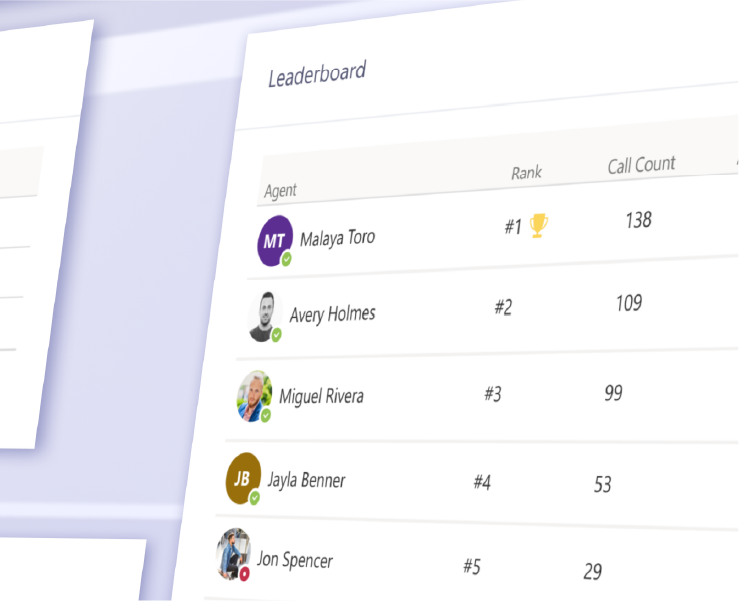
A contact center like Landis Contact Center should have some kind of Agent Status view that gives supervisors a live look at every agent’s current state. This including their contact center status, their queue sign-in state, and how long they’ve been in each status. If someone’s been sitting in “away” for 45 minutes, a supervisor can see that immediately rather than discovering it after the fact in a report.
Remote status management also lets managers change an agent’s status without waiting for the agent to do it themselves. If an agent forgot to sign back in after lunch, a supervisor can change it from the dashboard.
For longer-term visibility, a report like the Agent Timeline report should track every status change over time. That allows managers to identify patterns like which agents frequently go Away during peak hours, which queues tend to lose coverage at certain times of day, and address them through coaching or scheduling adjustments.
Getting Presence-Based Routing Right in Your Teams Contact Center
A few things worth verifying before you go live:
Confirm Teams presence permissions are granted. Landis uses the Microsoft Graph API to read live presence data. This requires specific API permissions during setup. If presence-based routing isn’t behaving as expected, this is the first place to check.
Decide whether to enable routing for Busy statuses. For most teams, routing only to available agents is the right call. For smaller teams or high-volume periods, routing to Busy agents as well can prevent queues from backing up. Make the decision intentionally rather than leaving it at the default.
Set a thoughtful RONA threshold. Match your alert window to how your team actually works. If agents use toast alerts, 20-30 seconds is a reasonable starting point.
Train agents on the two-layer status system. Agents who understand the difference between their Teams presence and their Landis agent status will manage their availability more intentionally.
Use supervisor tools as an early warning system. In the first few weeks after going live, keep the Agent Status view open. You’ll quickly spot patterns that need addressing before they become habits.
For step-by-step configuration details, Landis’s documentation on Teams presence-based routing covers the specific settings and options available in the platform.
Presence-based routing in a Teams contact center is one of those features that rewards the admins who take the time to understand it. It’s not complicated — but the details matter. And when it’s configured well, it does a quiet, reliable job of making sure calls reach the right people without constant manual intervention.
If you want to see how presence-based routing works alongside the rest of Landis Contact Center’s intelligent call routing strategies, including skills-based routing and RONA configuration, book a demo and we’ll walk you through it.