This is a guest blog post from Microsoft MVP Tom Arbuthnot, Co-founder of Empowering.Cloud
A note from Landis: This blog post gives an insight into Microsoft’s latest contact center product, Microsoft Contact Center Intelligence, from Tom Arbuthnot, an independent expert. As always, we are very happy to talk through all the contact center options in the Microsoft ecosystem, including our own Microsoft Teams certified contact center. If you would like to talk, get in touch with the Landis team.
What is Microsoft Contact Center Intelligence (CCI)?
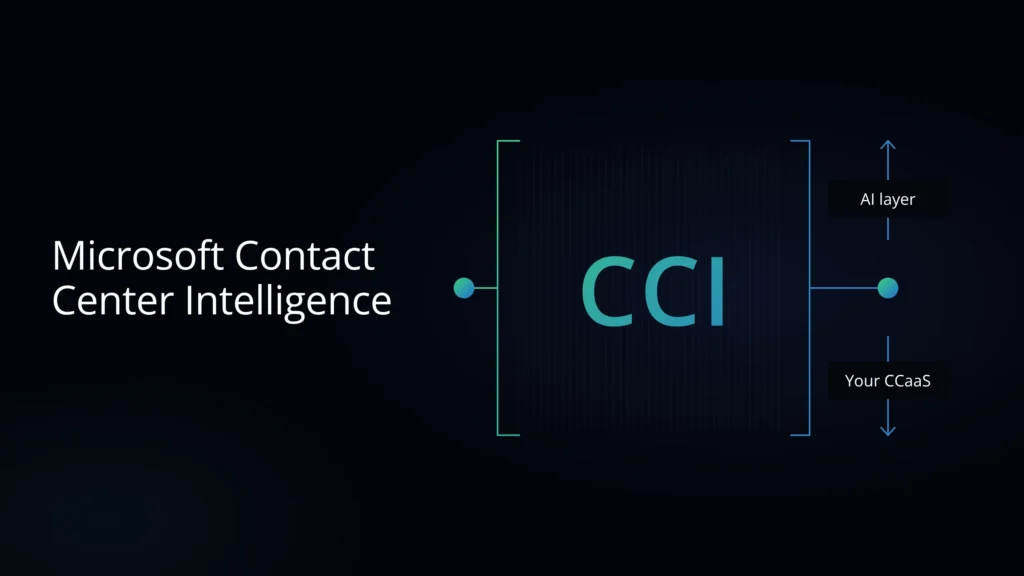
Microsoft Contact Center Intelligence (CCI) is Microsoft’s “AI layer for the contact center you already have”: AI agents for voice and chat, voice biometrics, and automated quality scoring that you can use without replacing your contact center telephony, routing, queues or agent desktop.
Microsoft Contact Center Intelligence (CCI) went generally available at Microsoft Ignite, four weeks after its public preview on 21 October. Jeff Teper announced it on 17 November and Omar Aftab published the detailed GA announcement on 18 November. I was at Microsoft Ignite for both sessions, BRK381: Modernize your contact center without rip and replace and BRK379: Build customer-facing agents in Copilot Studio, Teams, and CCI, and went through Microsoft’s announcements and documentation.
Today it connects to Genesys Cloud. Joint partnerships for connectors for Avaya, Cisco and Five9 are announced and currently show as “Coming soon” in the portal, which also lists NICE CXone and Amazon Connect. Through a “universal connector” you can integrate other platforms (development required).
In these scenarios, the PSTN phone call comes into the contact center. The contact center then routes it to the CCI agent over IP, and if any handoff from the agent is needed back to the contact center, it can route back into the contact center to human agents.
Agents can also answer on Microsoft Teams Phone and escalate to Teams call queues. I have since built an agent and put it on a Teams Phone number myself. The step-by-step write-ups are on Empowering.Cloud: How to build a CCI agent step by step and How to connect a CCI agent to Teams Phone and hand off to a call queue.
This blog is my attempt at one clear explanation: what it is for, how it works, how it connects, and what it costs.
TLDR, Too Long, Didn’t Read
- What it is: an AI overlay for an existing contact center. Microsoft’s phrase is “no rip and replace”.
- What you get: customer-facing AI agents for voice and chat, voice biometric authentication, and a Quality Assurance agent that can score every AI-handled conversation, at the sampling rate you set.
- What you keep: your carrier, numbers, routing, queues and the desktop your human agents already use.
- How it connects: a Genesys Cloud connector today, a “universal connector” you can build to for other platforms, and announced connectors for Avaya, Cisco and Five9; or Microsoft Teams Phone if you have no contact center at all.
- How you pay: usage based only, in Copilot Credits. No CCI license or SKU. Microsoft’s planning estimates run from 5 to 15 credits (about $0.05 to $0.15) for a short chat to 170 to 220 credits (about $1.70 to $2.20) for a ten-minute speech-to-speech call, at $0.01 a credit pay-as-you-go.
- What is documented today: Genesys Cloud and the universal connector. The other named connectors are announced but not yet documented or available in my testing.
What problem is Microsoft Contact Center Intelligence trying to solve?
Microsoft’s pitch is simple. End customers have little patience for traditional menu-driven IVRs (“press 1 for payments, press 2 for sales”) and want a better experience. Organizations want to improve service and scale cost effectively. Replacing a contact center platform can be a complex project. With CCI you can overlay AI capabilities without replacing your contact center.
Until now Microsoft’s native answer to “how do I get your AI in my contact center” was mostly “move to Dynamics 365 Contact Center”. CCI is the other path: keep the platform, add the AI layer. Omar Aftab, VP of Conversational AI and Contact Center Intelligence, described it as “overlaying the same AI layer that powers the agentic capabilities inside of Microsoft’s own Dynamics Contact Center onto your existing CCaaS system”.
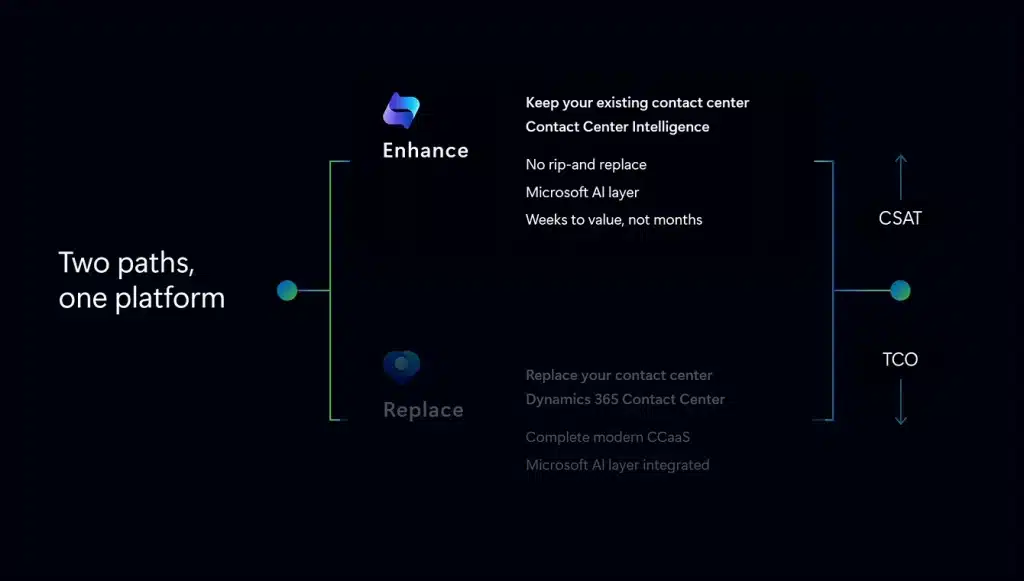
Microsoft’s “Two paths, one platform” slide: Enhance (keep your existing contact center, add Contact Center Intelligence) or Replace (move to Dynamics 365 Contact Center ). Source: BRK381.
What is in the box?
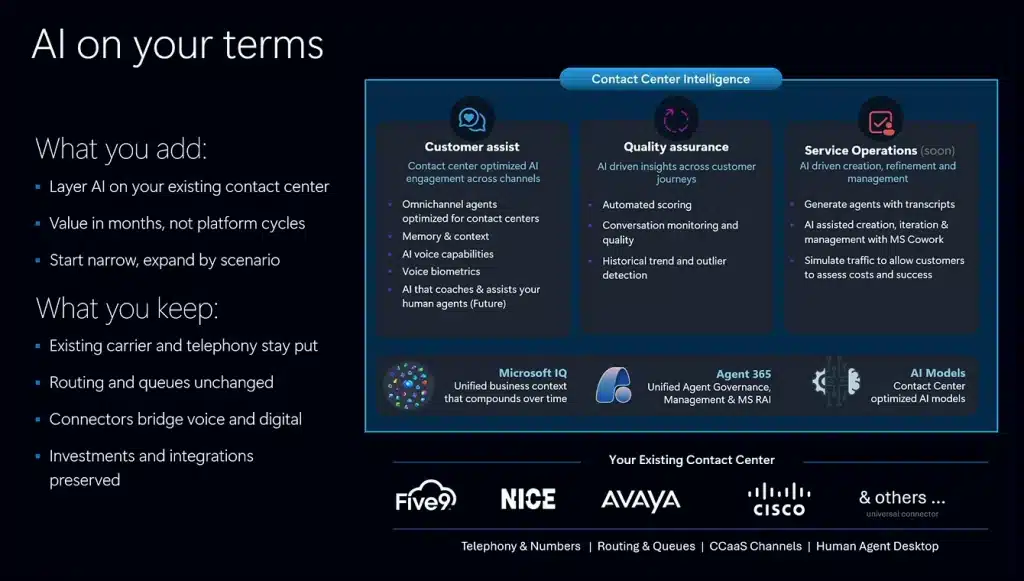
What CCI adds (Customer assist, Quality assurance, and Service Operations “soon”) on top of Microsoft IQ, Agent 365 and contact-center-optimized models, and what stays with your existing contact center: telephony and numbers, routing and queues, CCaaS channels and the human agent desktop. Source: BRK381.
Three product areas:
- Customer assist. The customer-facing AI agents: omnichannel, with memory, voice capabilities and voice biometrics.
- Quality assurance. Automated scoring, conversation monitoring, and trend and outlier detection.
- Service Operations (marked “soon”). Generating agents from transcripts, AI-assisted creation and management “with MS Cowork”, and simulating traffic to assess costs and success before you go live.
Note the line under Customer assist: “AI that coaches & assists your human agents (Future)”. Today CCI is about the self-service front door and the quality loop. Real-time assistance for your human agents on a third-party platform is on the slide but not in the product yet.
How it works: the agent
CCI gives you a dedicated agent builder, in the new CCI portal. It is Copilot Studio’s new Customer Conversation builder, not the classic Copilot Studio authoring canvas you may already know, and you can reach the same builder from Copilot Studio. You describe what you need in plain language, or build manually, and the builder creates the agent.
Underneath, the builder runs on what Microsoft calls the “Customer Conversation harness”: a new runtime on Copilot Studio, built for customer-facing conversations. A CCI agent can reuse the tools and workflows you have already built in Copilot Studio, it is billed on the same Copilot Credits, and it is governed the same way. Essentially, these are a variant of the Copilot Studio voice agents, focused on the contact center.
A team of specialist agents
Describe what you need in plain language and the builder generates a primary agent plus sub-agents. In the demo, a bank assistant with sub-agents for checking accounts, credit cards and mortgages. Each sub-agent has its own instructions, knowledge, tools and skills, “just like departments in a contact center”. You can also bring in agents built elsewhere; the demo added a Microsoft Foundry agent that analyzed transactions.
When I built my own, the builder took about a minute and a half and split the agent into a primary agent and two sub-agents without being asked. It also wrote instructions I had not asked for, telling the agent to collect the caller’s name, company and email before doing anything. So be sure to read what it generates before you trust it. The full build is in my step-by-step walkthrough.
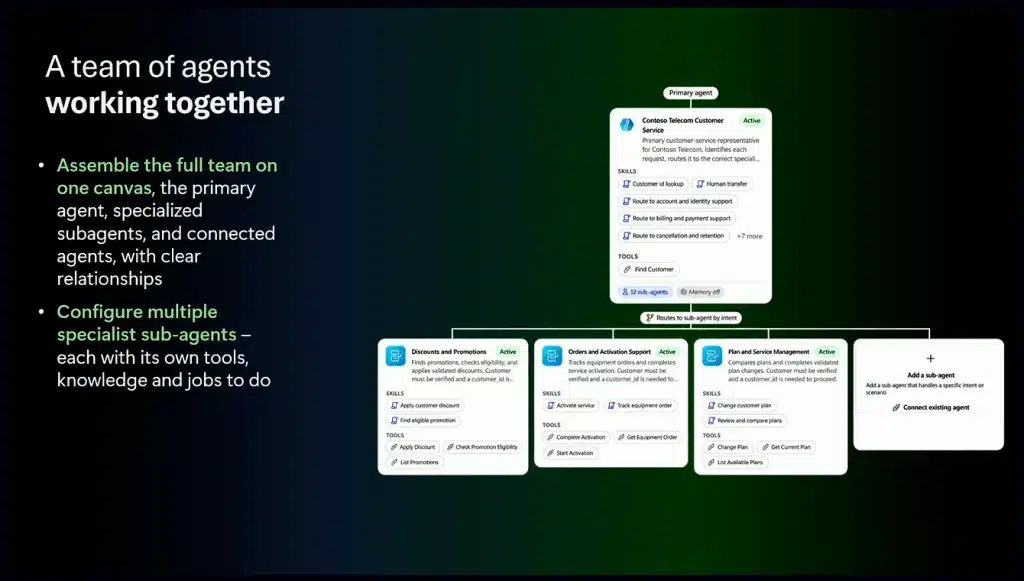
The agent canvas: a primary agent routing to specialist sub-agents, each with its own skills and tools. Source: BRK381.
Generative skills and deterministic topics in the same agent
For some jobs you will be happy to give general instructions and let the model use judgment (recommend a credit card, ask about annual fees and perks, never offer more than three options) based on the grounded data. For others you will need an exact, step-by-step dialogue for legal or compliance reasons.
CCI lets you mix both inside one agent: generative skills alongside deterministic topics, which are the same topics as existing Copilot Studio. Variables now pass between the two, so details gathered in a generative conversation can drive a deterministic flow.
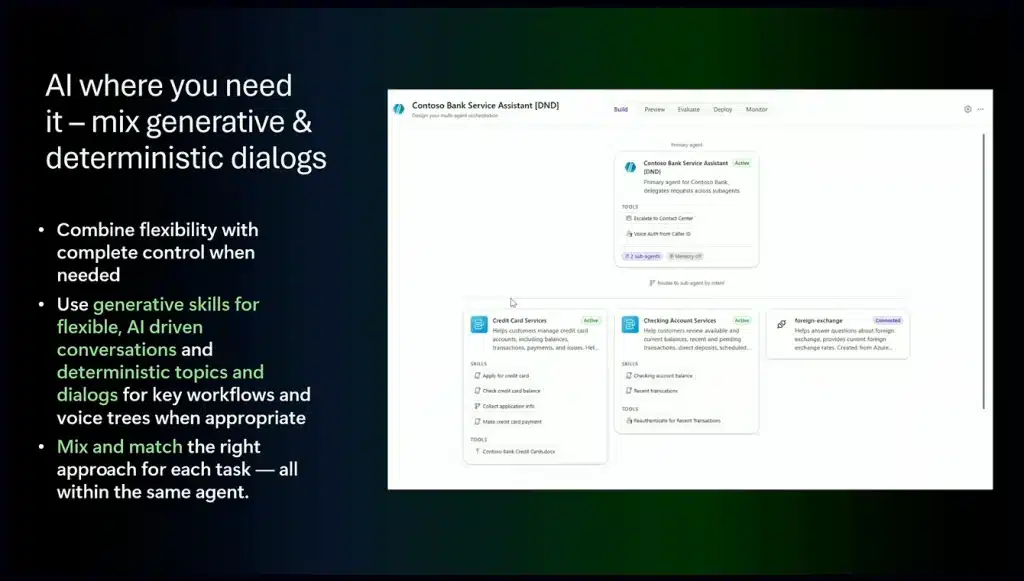
“Mix generative and deterministic dialogs”: generative skills for flexible conversations and deterministic topics for key workflows and voice trees, in the same agent. Source: BRK381.
One agent for voice and chat, with memory
Agents are omnichannel by default; the same agent answers the phone and the web chat widget, and is channel-aware. In the demo one topic showed an adaptive card of credit card options on web chat, and on voice checked whether the caller was verified instead.
They also have memory. Jason Xian hung up mid-call in both sessions, called back, and the agent picked up where it left off: “Welcome back. We were discussing a new credit card for your upcoming travel”. One detail worth knowing: in Jason’s demo the agent was set to authenticate the caller before recalling the previous conversation. The memory documentation says a voice agent identifies a returning caller by phone number, chat authenticates the user first, and memory is short-term context kept for 30 days. Decide what your agent may say on the strength of a caller ID alone.
One limit I found when I built my own agent: its Memory setting says “Available only for agents published to Dynamics 365 Contact Center”. On that wording my Teams Phone agent does not get the returning-caller memory from the demo, and I would check before assuming it on a third-party platform.
Voice settings and models
Voice is configurable in some depth: voice fonts (including Microsoft AI voices, with different voices per language), speaking speed and pitch (in cost mode), speech instructions for tone, DTMF behavior, speech sensitivity, silence detection, and “latency messaging” that keeps the caller informed while the agent does something.
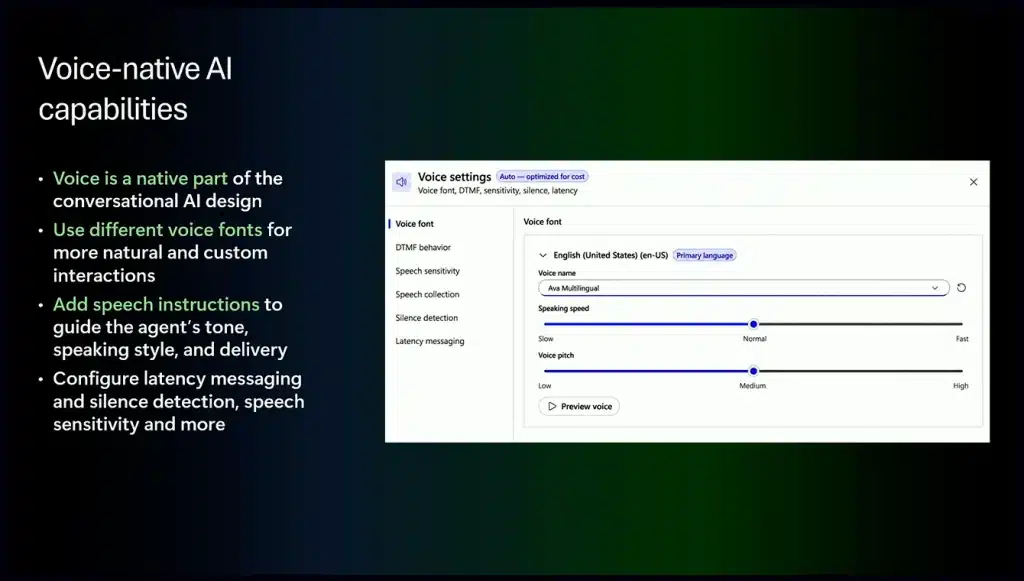
Voice settings in cost mode: voice font with language, speed and pitch, plus DTMF behavior, speech sensitivity, silence detection and latency messaging. Source: BRK381.
On models, the builder gives a simple choice of “Auto, optimized for cost” or “Auto, optimized for latency”. According to the model documentation, cost mode is a cascaded pipeline (speech to text, a language model, then neural text to speech) and latency mode is speech-to-speech.
One practical difference between the two modes: the realtime model “can detect and switch to a different language mid-conversation automatically”, while the cascaded mode “requires an explicit request”.
In my own testing the difference was audible. On a real call in cost mode there were 11 seconds between my question and the answer, filled with five holding lines. In the voice preview, latency mode felt more responsive, with two holding lines before the answer. The voices differ too: cost mode uses Microsoft’s neural voices, while latency mode offered ten named voices and no language, accent, speed or pitch setting. The settings and screenshots are in my build walkthrough.
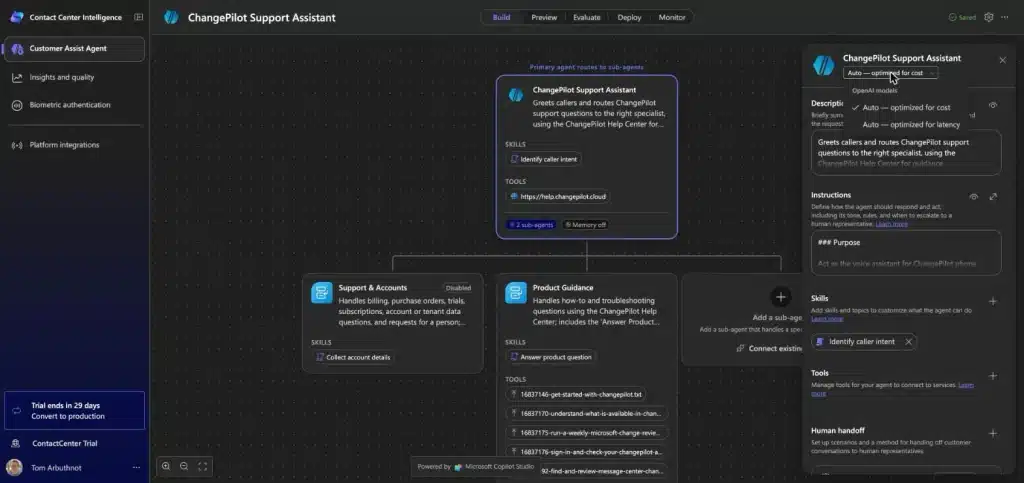
Model selection on the primary agent, from my own trial environment: two choices under “OpenAI models”, optimized for cost or for latency.
Microsoft’s Ignite slide on models also listed Microsoft AI Realtime, its own speech-to-speech model, as “coming soon”.
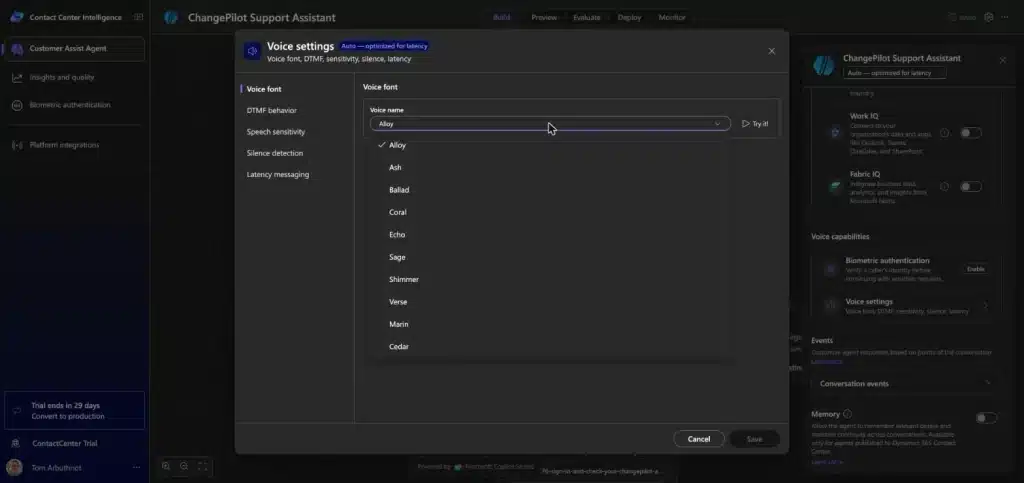
Voice settings in latency mode, from my own trial environment: ten named voices and a Try it! button, with no language, speed or pitch controls.
Grounded in Microsoft IQ
Each agent can use Microsoft IQ for context: Work IQ for Microsoft 365 content (the refund policy in SharePoint), Foundry IQ for curated knowledge such as product manuals indexed in Azure AI Search, and Fabric IQ for business data such as order status. One limit for voice: speech channels have no end-user sign-in, so knowledge sources that need the user’s own credentials, SharePoint and Dataverse among them, are “available only in Chat conversations” (knowledge sources documentation). Plan a different source for the phone version of that refund policy. You can also add tools directly: APIs, custom connectors and MCP servers.
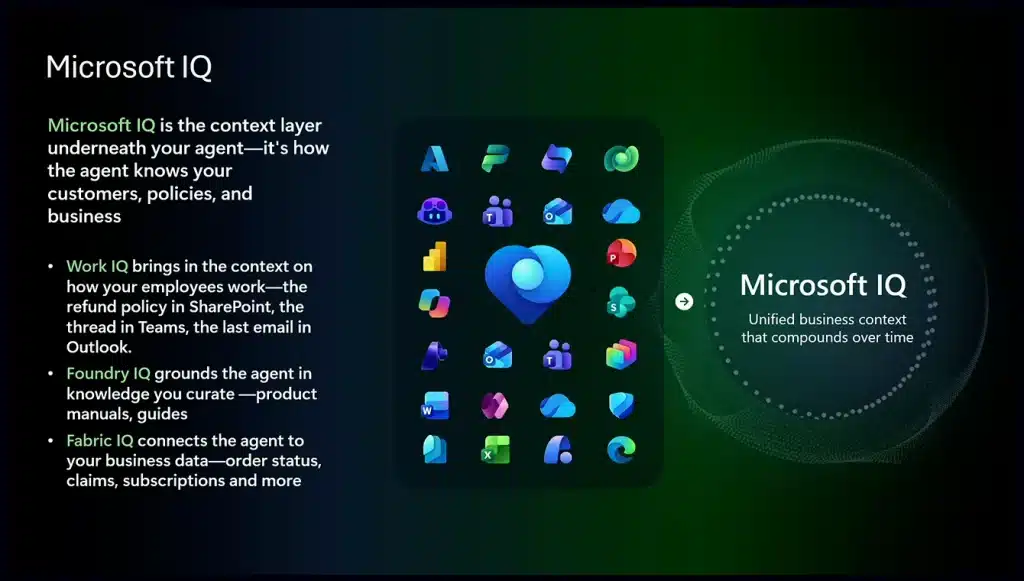
Microsoft IQ as the context layer: Work IQ, Foundry IQ and Fabric IQ. Source: BRK381.
Agent 365 governance
Because these are Copilot Studio agents, they appear in the Microsoft Agent 365 registry in the Microsoft 365 admin center as soon as a maker names one, before it is published. Admins can see the owner, channels, Entra ID, connected contact center, knowledge sources, tools and permissions. Existing DLP and connector policies apply.
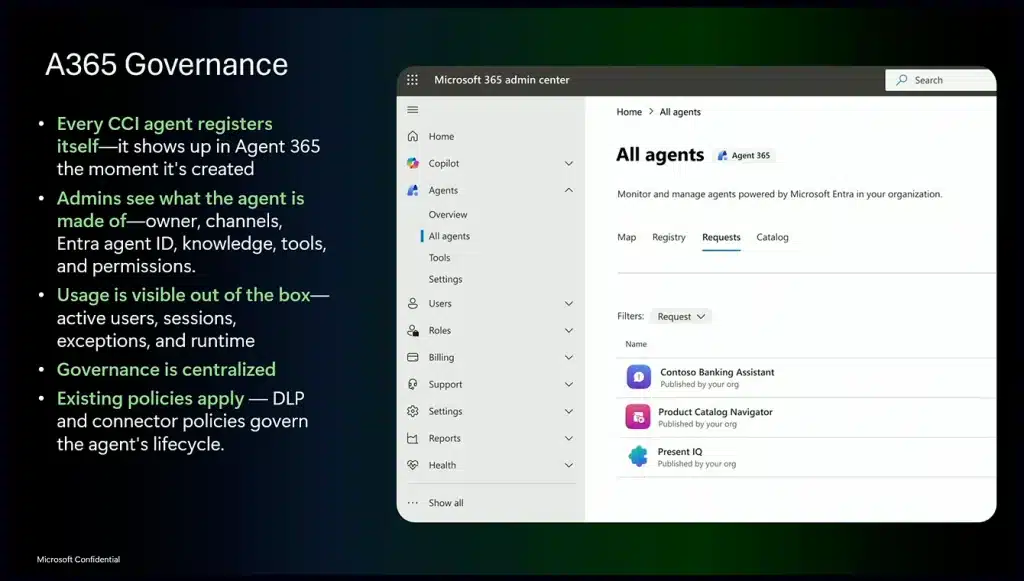
CCI agents register in Agent 365 on creation. Source: BRK381.
Test, evaluate, publish
Before going live you can talk to the agent as a real voice call with no phone number, watch an activity map of every tool call and knowledge lookup, and run evaluation sets. Publix, the customer in BRK379, called out the voice preview and evaluations as two of the features they value most.
Once the agent is live, its Monitor tab logs each real call with a transcript timestamped to the second, kept for 28 days. It is the best tool I found for tuning a voice agent, because it shows the waiting.
Voice biometrics
Authentication is where a lot of call time goes. CCI includes voice biometrics that verify the caller while they are explaining why they called. The portal describes three steps:
- Consent. “Most jurisdictions require customer consent to collect, store, and use their voice for authentication.”
- Voiceprint enrollment. Created from about six to 12 seconds of speech, which typically means 24 to 48 seconds of conversation.
- Voice authentication. Attempted automatically using three to six seconds of speech.
The demo made the point well. Omar called from Jason’s phone, said “Hi, this is Jason” and asked to move money to an external account. The agent replied “I couldn’t verify your identity by voice” and transferred the call to a human, flagged as unauthenticated. The voiceprint timeline then shows the pass and the fail side by side.
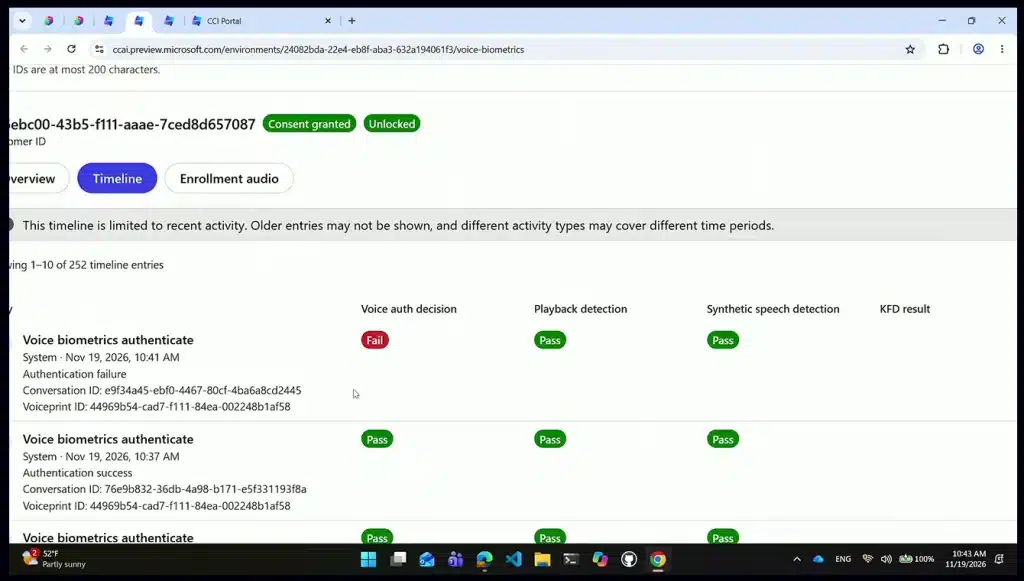
Voiceprint timeline: the genuine caller passes, the impostor fails the voice match while passing playback and synthetic speech checks. Source: BRK379.
Four things from the biometrics documentation that were not on stage:
- Where voiceprints live. They are “a secure mathematical representation” stored “within your Dataverse environment”. Retention is yours to govern, and opting out or unenrolling permanently deletes the voiceprint.
- Consent is your liability. The biometrics overview carries the line “You will defend and indemnify Microsoft against any claims made by a third party related to this biometric functionality, including but not limited to the adequacy of consent”, and names BIPA and GDPR. Involve legal and privacy early.
- It also works on human-handled calls. There are two modes: human-to-bot, inside the AI agent, and human-to-human, which listens passively on a third-party platform and shows the result in a widget on the representative’s desktop. The widget is the one place a per-user license appears: representatives need Dynamics 365 Contact Center licenses.
- Do not use the phone number as the customer identifier. Microsoft’s guidance is to tie the voiceprint to a unique, persistent customer ID rather than the caller’s number, even though the demo line was “based on your caller ID and voice”.
The model is Microsoft’s own and described as language agnostic, benchmarked on “32 languages across 143 telephonic datasets”.
One thing I noticed: in the portal used on stage on GA day, Biometric authentication still carried a “Preview” tag in the navigation. In my own trial environment on 23 November there is no Preview tag on it, and Microsoft’s release notes list biometric authentication as generally available.
Insights and quality from the Quality Assurance agent
A Quality Assurance agent scores conversations against an evaluation plan you define, writes a summary, and suggests improvements. The plan’s conditions and sampling rate decide which conversations are scored, up to all of them. In the demo a call scored 50 out of 100, flagged among other things because the agent did not offer further help before the conversation ended, with the suggested action spelled out.
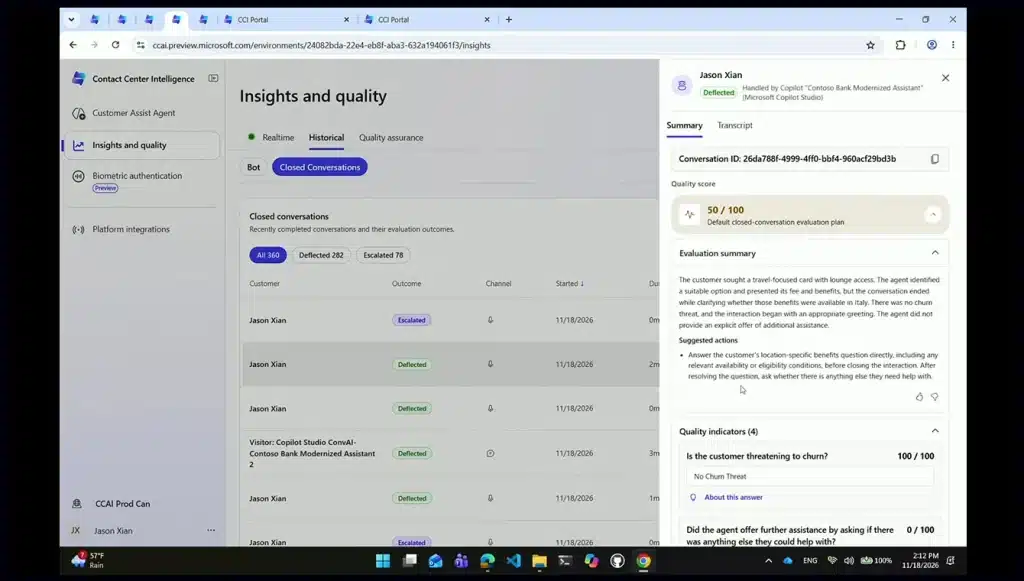
A closed conversation in Insights and quality: outcome (deflected), quality score, evaluation summary, suggested actions and individual quality indicators such as churn threat. Source: BRK381.
Above that sits a dashboard: deflection rate, active conversations, average time to escalate, conversations by language.
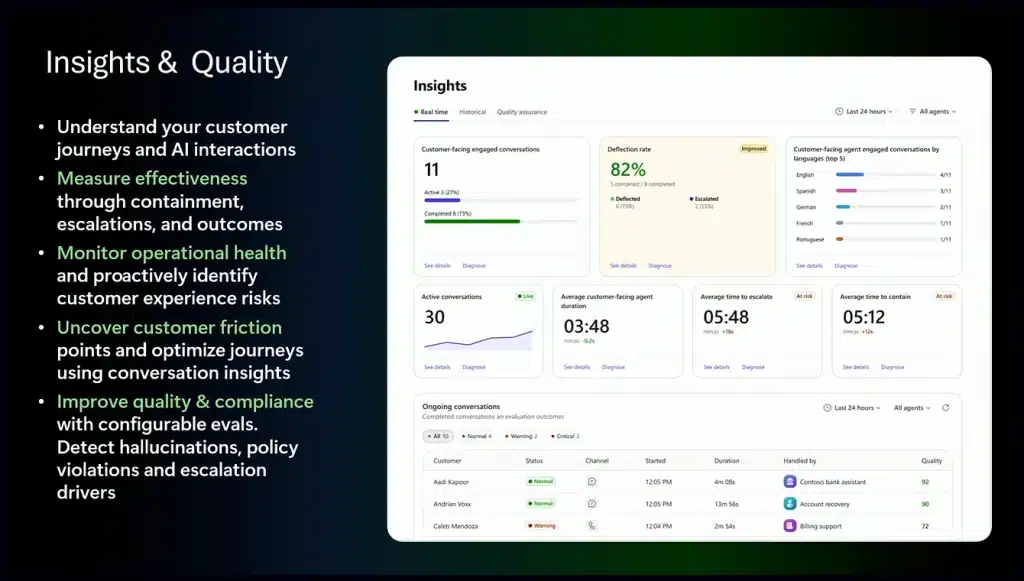
The Insights dashboard: engaged conversations, deflection rate, time to escalate and time to contain. Source: BRK381.
The limit to know about: it scores the AI, not your people. The quality assurance documentation says “Quality assurance evaluates only the portion of a conversation handled by the self-service agent. If the conversation is escalated to a human representative, the representative-handled portion isn’t included”, and once a call is escalated “any activity that occurs later in the non-Microsoft contact center isn’t tracked”. Microsoft’s October preview blog talked about evaluating “both agentic and human-led interactions”; on a third-party platform, that is not what the documentation describes today.
How it connects
This is the part that makes CCI different from “just build a Copilot Studio voice agent”, so it is worth being precise.
To your contact center
The connector list shown at Ignite: Genesys Cloud CX, Dynamics 365 Contact Center, Cisco Webex Contact Center, Avaya Infinity, Five9, NICE CXone and Amazon Connect, plus “Add any contact center” for everything else.
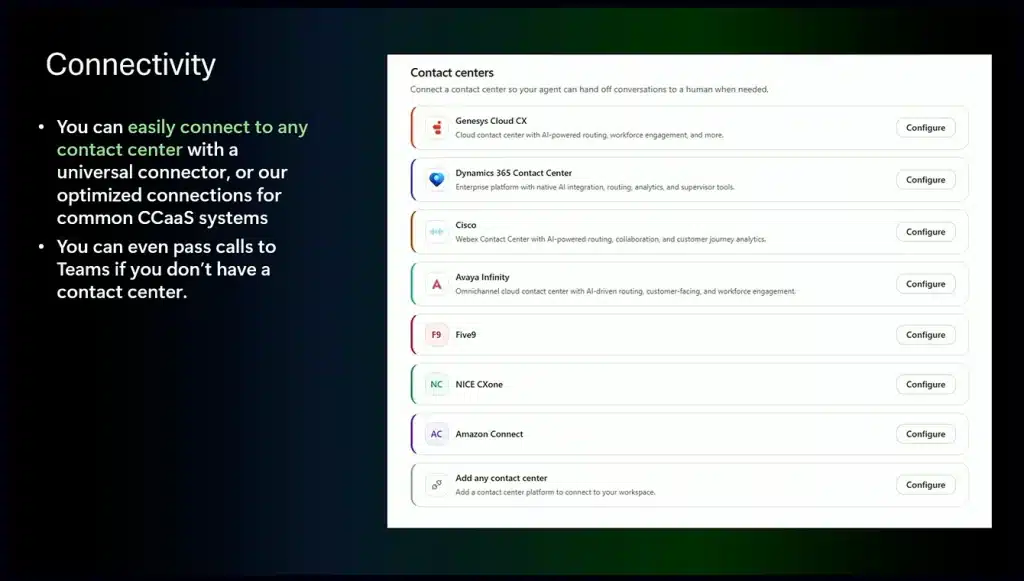
The contact center list: Genesys Cloud CX, Dynamics 365 Contact Center, Cisco, Avaya Infinity, Five9, NICE CXone, Amazon Connect and “Add any contact center”. Source: BRK381.
Microsoft also announced partnerships with Avaya, Cisco and Five9 at GA, to “build and maintain out-of-the-box connectors” and align on support, sales and go-to-market. Genesys and NICE are on the list but were not named as partners.
Check what is live before you plan around it. There are four different pictures:
- Documented: Microsoft’s What’s New for GA says “Initial guidance includes integrations for Genesys Cloud and a universal connector for other platforms”. Those are the only two with setup documentation.
- Shown: in the Platform integrations page used in the live demo on 18 November, Genesys Cloud CX and Avaya Infinity were available and Cisco Webex and Five9 were marked “Coming soon”.
- Announced: Avaya’s own blog on the same day describes the dedicated Avaya Infinity connector as “coming soon”. Five9’s own post on 12 November describes CCI integrated with its Genius CX platform as what is next, with no availability date. I could not find anything from Cisco itself.
- In my own trial: on 23 November, the Platform integrations page in my trial environment offered Genesys Cloud CX as the only named platform I could connect. Avaya Infinity, Cisco Webex and Five9 all showed “Coming soon”, alongside “Add any contact center”. The agent’s Deploy page lists more names (Dynamics 365 Contact Center, NICE CXone and Amazon Connect as well), but a name on that page is not the same as a connector you can set up.
The Avaya demo at Ignite was real, but anything other than Genesys Cloud and the universal connector is not generally available or documented at the time of writing.
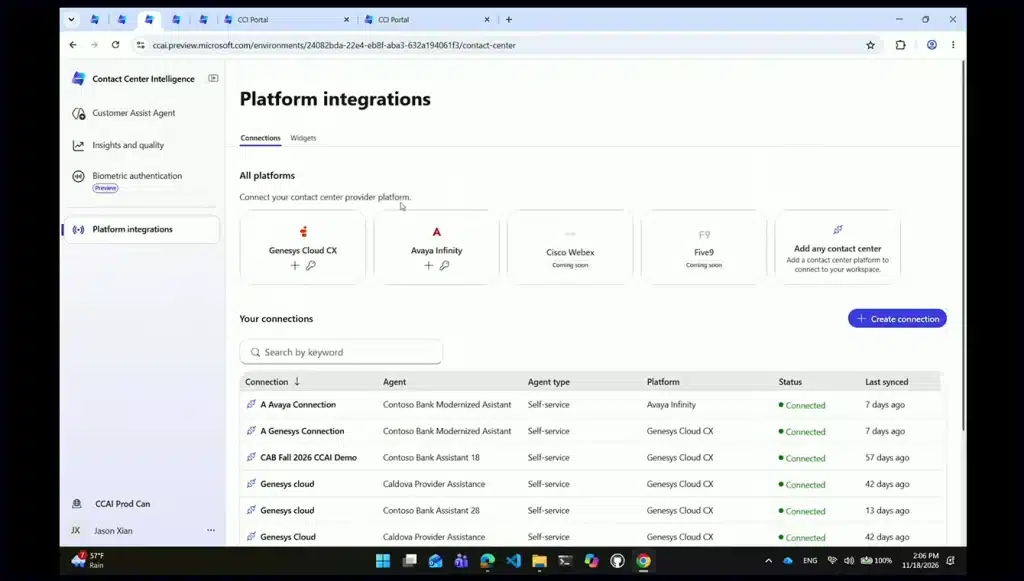
Platform integrations on GA day: Genesys Cloud CX and Avaya Infinity available, Cisco Webex and Five9 “Coming soon”, plus existing connections and their status. Source: BRK381.
Setting up a connection is a short wizard: name it, pick the platform, and pick the agent type. There are two types: Self-service (“Agents talk directly with your customers”) and Representative-facing (“Agents assist your human representatives”).
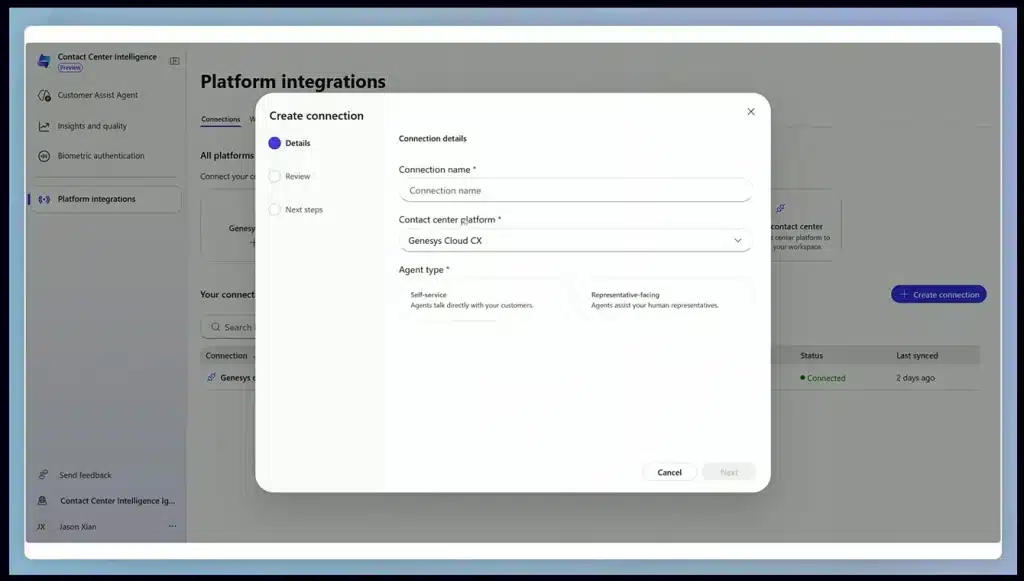
Create connection: choose the contact center platform and whether the agent is self-service or representative-facing. Source: BRK381.
CCI then gives you credentials to paste into the contact center side. For Avaya that was a primary key, a secondary key and a voice endpoint, with separate Voice and Chat tabs. The voice endpoint is a wss:// address, and that is the key to how the whole thing works.
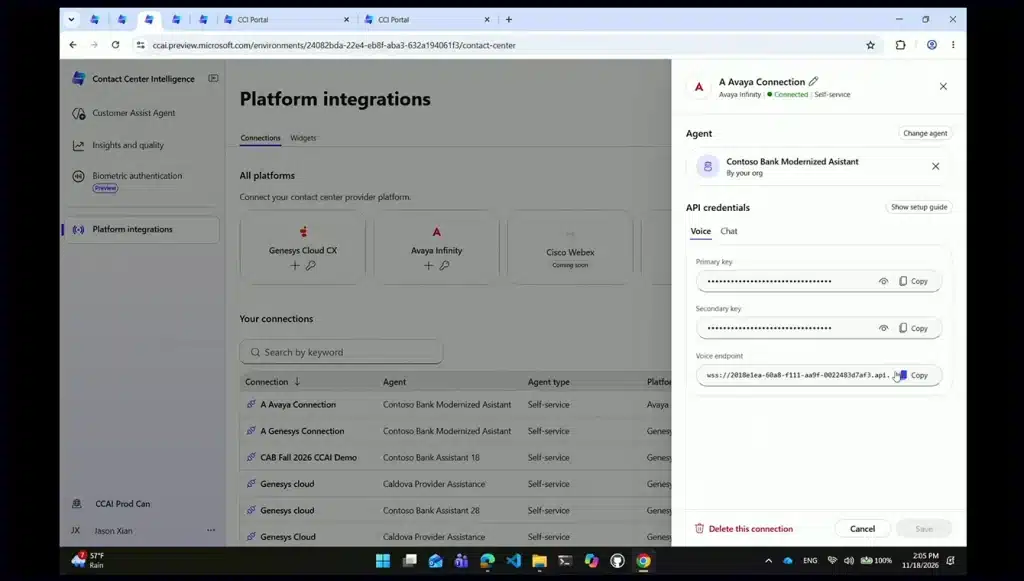
An Avaya Infinity connection: primary key, secondary key and a WebSocket voice endpoint to copy into Avaya. Source: BRK381.
It streams media; it does not move the call
This is the part I most wanted to understand, and the documentation is clear. CCI does not take over your telephony. There is no SIP trunk to Microsoft and no session border controller to add. Your platform keeps the call and streams the audio to Microsoft over a WebSocket.
Genesys Cloud voice uses the Genesys Audio Connector from AppFoundry, in Microsoft’s words “without adding Session Border Controllers (SBCs), Session Initiation Protocol (SIP) trunks, or direct telephony interconnections to Microsoft”. CCI generates a voice endpoint, App ID and key; the Genesys admin pastes them into the Audio Connector and adds a “Call Audio Connector” action in Architect. “The call remains anchored in Genesys.” When the AI agent wants to transfer, it returns an action and a target, and Genesys does the transfer through its own ACD (Genesys voice connector docs).
Genesys chat uses the Genesys Bot Connector over an HTTPS webhook. One limit to note: “The connector currently supports plain text. It doesn’t support cards, images, quick replies, or other structured content.” So the adaptive card in the web chat demo would not appear in a Genesys-hosted chat (Genesys chat docs).
The universal connector is “a Microsoft-hosted WebSocket server”. Your platform, or your integrator, is the WebSocket client and exchanges JSON messages, “no SDK required”. It authenticates with a Microsoft Entra service principal, carries audio (PCM or G.711, mono, 20 ms frames) or text, and supports DTMF, barge-in and real-time transcripts. Handoff is a call.transfer or chat.transfer message with up to 50 context variables, and your platform performs the transfer. Microsoft’s own advice: the transfer destination “might be empty. Always implement a fallback.” (universal connector docs).
“Universal” means “you can build to it”, not “it works out of the box”. Someone has to write and support the client on the contact center side.
The practical result: the call still arrives on your existing number, through your existing carrier, into your existing platform. The platform streams the conversation to the CCI agent, and when a human is needed your platform routes it into your existing queues. Bandwidth depends on the connector. Genesys sends raw G.711, about 64 kbps each way per concurrent call. The universal connector wraps audio in Base64 and JSON, so Microsoft’s estimates are higher: about 185 kbps inbound and 95 kbps outbound for G.711, and about 440 kbps inbound and 350 kbps outbound for 16 kHz PCM, which is the default. Microsoft’s advice is to size for the default “unless you explicitly negotiated G.711”.
A call, step by step: the Genesys Cloud example
Genesys Cloud is the one platform where both vendors have published documentation, so it is the best worked example. One prerequisite first: Genesys says “Audio Connector is not supported under BYOC Premises”, nor on premises-based Edge (Audio Connector limitations), so this design needs cloud-hosted Genesys media. Here is what happens to one inbound call.
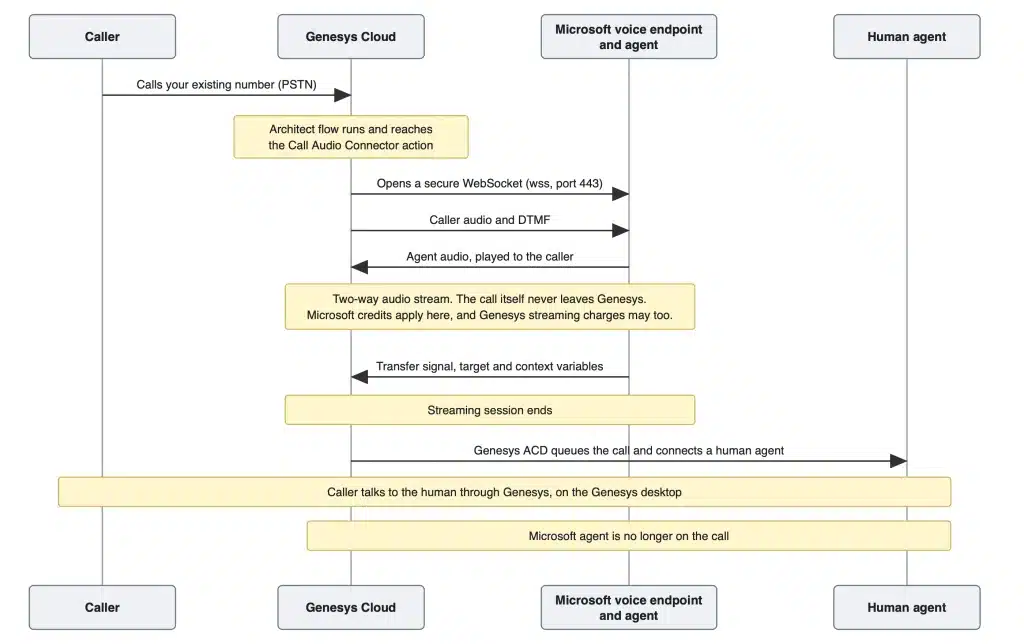
Call flow and media path for a Genesys Cloud voice call handled by a CCI agent. My diagram, based on the Microsoft and Genesys documentation linked below.
- The call arrives in Genesys Cloud, on your existing number and carrier. Nothing changes on the PSTN side.
- Your Architect flow reaches a “Call Audio Connector” action. Audio Connector is a Genesys premium app from AppFoundry. Genesys describes it as “a bi-directional and near real-time stream” where “the voice call audio streams from and to the Genesys Cloud platform over a secure web socket” (Audio Connector overview).
- Genesys opens the WebSocket to Microsoft. Genesys is the client and the Microsoft voice endpoint is the server. It is
wss://on port 443, authenticated with the key and secret that CCI generated. - Audio flows both ways. Microsoft’s docs say the connector “sends raw PCMU audio in binary WebSocket frames”, about 64 kbps in each direction per call. The CCI agent listens, reasons, and sends speech back, which Genesys plays to the caller. Barge-in and DTMF are supported.
- The agent decides a human is needed. It does not transfer anything itself. It returns a transfer signal, a target and context variables. Microsoft’s wording: “Treat transfer signals from Copilot Studio as instructions that Genesys evaluates and executes.”
- Genesys does the transfer. “Genesys evaluates the payload and performs an automatic call distribution (ACD) transfer to a Genesys queue or an external PSTN transfer.” The context arrives as Architect variables, which you map into your flow and screen pop.
- The human agent picks up in the Genesys desktop. The streaming session has ended, so the Microsoft agent is out of the call.
Microsoft sums it up as “the Audio Connector doesn’t transfer call ownership” and “Genesys remains the system of record for telephony and routing” (Genesys voice connector docs).
So what are you paying for? While the AI agent is on the call you pay Microsoft, and you may also be paying your contact center vendor.
- Microsoft: Copilot Credits for the AI-handled part of the conversation. It is a consumption meter, not a per-minute one, but a longer AI conversation costs more.
- Genesys and others may also have a charge for the interconnectivity or streaming.
The handoff to a human
When the agent escalates, the human agent stays in the desktop they know. In the Avaya demo the representative saw the live transcript and a “Powered by Microsoft” panel with intent, summary, authentication status and sentiment. For the impostor call it read “Voice authentication attempted but failed. Voiceprint did not match.”
That panel was shown on Avaya. What the documentation describes is narrower: context passes to your platform as variables, which you map into your own flows and desktop, and the only documented desktop component is the voice authentication widget for Genesys. If the transcript and summary panel matters to you, ask to see it on your platform.
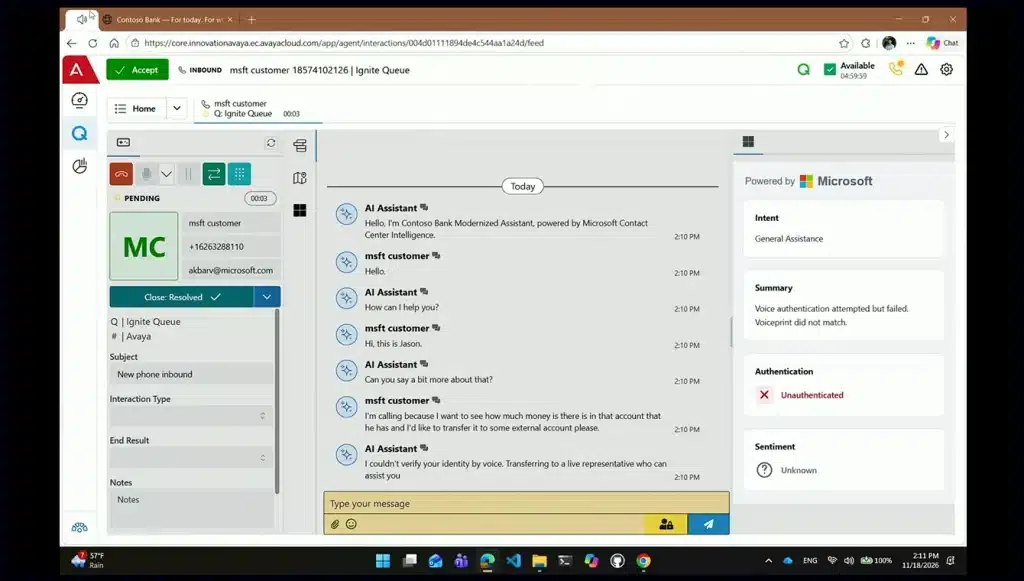
The Avaya agent desktop after escalation: full AI conversation transcript plus a Microsoft panel with intent, summary, authentication status and sentiment. Source: BRK381.
Direct channels
You do not have to go through a contact center platform. The Deploy page lists direct channels: Web chat and Teams Phone are available; SMS, WhatsApp, Facebook, Line and Custom app are marked “Coming soon”. Web chat is a script you paste into your site, with branding options. Publishing also creates a demo website for internal testing, which Microsoft says is not for production use (Deploy an agent docs).
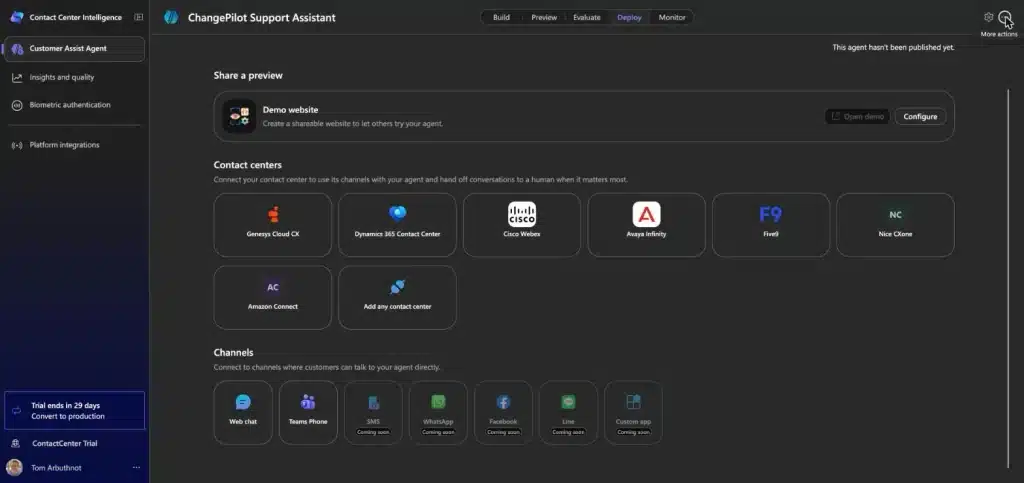
The Deploy page in my own trial environment: contact center connectors above and direct channels below, with Web chat and Teams Phone available and SMS, WhatsApp, Facebook, Line and Custom app coming soon.
To Microsoft Teams
Teams Phone is a channel, not a connector. That distinction matters. With Genesys, the call lands in your contact center and the contact center streams audio to the agent and takes the call back. With Teams Phone, the phone number belongs to a Teams resource account that points at the agent. In the simplest setup, direct dial, the agent answers first, in the position an auto attendant would normally hold, and then transfers into Teams.
The agent can answer the call and escalate into Teams. The “Escalate to Teams” tool shown at Ignite offers two routes: an external phone number or SIP URL, or a Teams call queue via tags configured in the Teams admin center. In the CCI portal I found it under the agent’s Human handoff section, not under Tools: Handoff method offers Teams Phone, Email and Customer Engagement, with Teams chat listed but grayed out, and Teams Phone then gives the same two routes. The number itself is assigned by a Teams admin, as below.
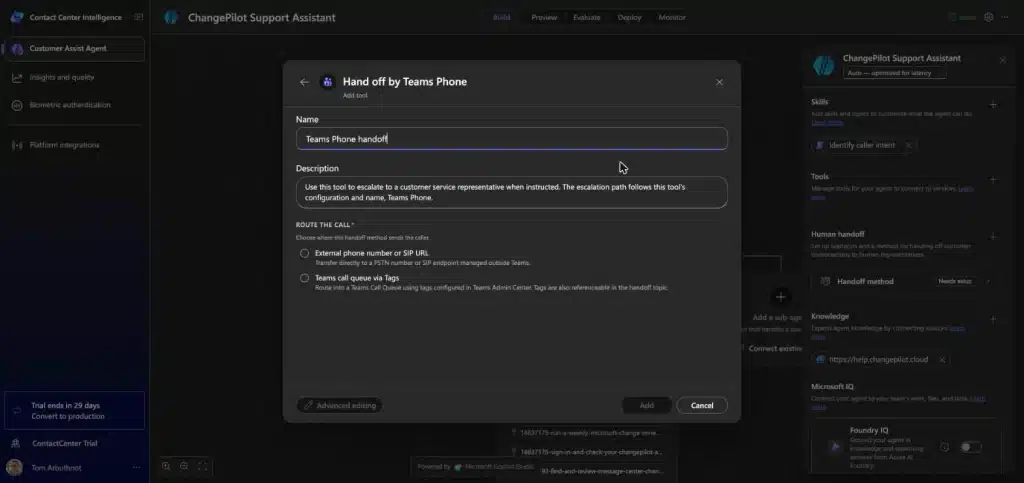
Hand off by Teams Phone in the CCI portal: route to an external phone number or SIP URL, or into a Teams call queue using tags. From my own trial environment.
For Teams admins this is the interesting bit. It is a route to an AI front door on a Teams Phone number without buying a contact center. What it takes, from Microsoft’s Deploy an agent docs for the maker side and the Teams documentation for the admin side:
- The maker publishes the agent, then selects Configure on the Teams Phone card on the agent’s Deploy page, then Enable. “The agent’s name now appears in the Teams admin center under Resource accounts.” The phone number runs the published version, so every later change needs another publish.
- A Teams admin creates a resource account of type “AI Agent”, assigns the free Teams Phone Resource Account license, and optionally a number from Calling Plans, Operator Connect or Direct Routing. Without a number, only users in your tenant can call it.
- You need at least one Teams Phone license in the tenant, Copilot Studio tenant and user licenses for the maker, and Copilot Credits.
- Tags can route to call queues, auto attendants or specific users. They live in a tag template in the Teams admin center (Voice > Templates and resources), which the admin attaches to the resource account. The maker types the tag name into the agent by hand, and it has to match exactly.
- Transfers to external numbers depend on how the number is connected: a Microsoft number needs a funded pay-as-you-go Calling Plan or Communications Credits, Direct Routing needs a voice routing policy, and Operator Connect needs nothing extra. Transfers between Calling Plan, Operator Connect and Direct Routing trunks are not supported.
I have now done this end to end on an Operator Connect number, on the free trial. The steps and screenshots are in How to connect a CCI agent to Teams Phone and hand off to a call queue. It worked, and the limitation I found was the handoff: the call passed to the queue, but the context did not. In my test the queue call arrived as “Unknown User”, with no caller number and no transcript or summary from the AI conversation. That is what I saw on the incoming call notification, not a documented limit. It is the clearest difference from the contact center route, where the Ignite demo showed the AI conversation and a summary on the human agent’s desktop.
Three cautions:
- Direct dial is not the only documented way in. The auto attendant documentation lists “Agents & queues” as a menu destination, to “access Microsoft Copilot Studio (MCS) agents and third party IVRs”, and the Teams Phone Agent planning page describes a handoff from Teams Phone Agent to Contact Center Intelligence voice agents. I have not found anything that lets an ordinary call queue route a call to the agent, so I would not plan on that.
- The Ignite session mentioned handing off to Teams chats and channels; the documented escalation paths are Teams Phone, email and a contact center, and in the portal Teams chat is listed as a handoff method but grayed out, so I would not count on chat or channel handoff yet.
- The Teams page for voice-enabling Copilot Studio agents, updated on 18 November, still shows public preview as its latest status.
CCI and Copilot Studio: which is which?
The naming takes a minute to untangle.
- The Customer Conversation harness is the runtime underneath. It is new, it runs on Copilot Studio, and it went GA at the same time. It is what handles sub-agents, skills and topics, voice and memory.
- The builder is the new, dedicated authoring experience on top of the harness. Microsoft’s wording in BRK379 was “a new dedicated harness on Copilot Studio, the customer conversation harness, and a new builder experience alongside it”. It is a different experience from the classic Copilot Studio canvas.
- Contact Center Intelligence is its own portal (Microsoft pointed people to
ccai.microsoft.com). It includes the builder and adds the contact-center parts: platform connectors, biometric authentication management, and insights and quality.
There are two ways in to the same builder. In BRK381 the agent was built from the CCI portal. In BRK379 it was started from the Copilot Studio home page, with CCI described as an “extension” used for the contact center connection and voiceprint management. Either way you are working on the same agent.
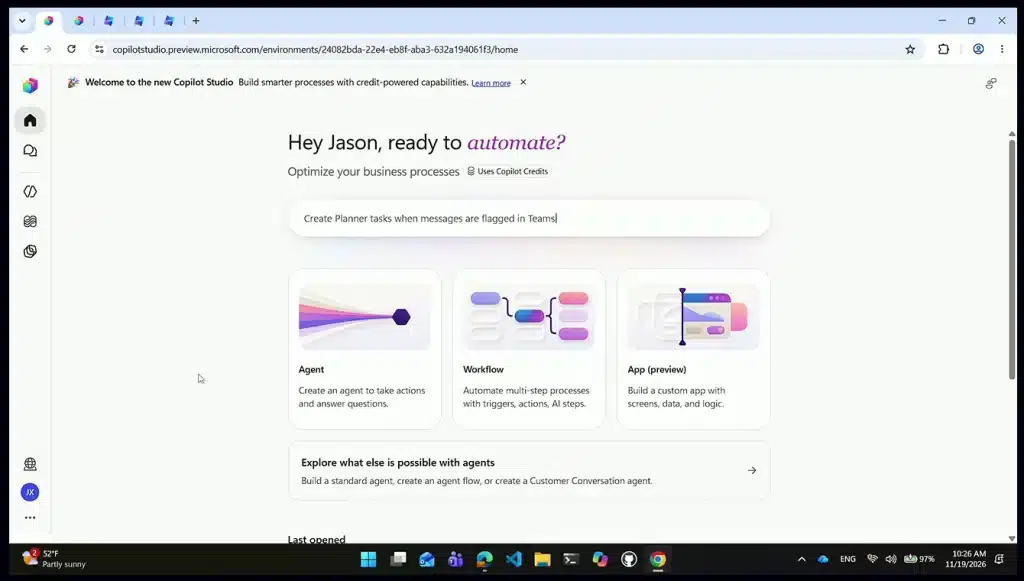
Copilot Studio home: “create a Customer Conversation agent” sits under “Explore what else is possible with agents”. Source: BRK379.
Where CCI fits with Microsoft’s other voice AI
In my November Teams update I counted five doors into AI voice in and around Teams: Teams Phone Agent, the Copilot Studio harness, Teams Phone Agent plus a certified contact center through Unify, Dynamics 365 Contact Center, and Contact Center Intelligence. A rough guide:
| You have | Look at |
|---|---|
| A shared Teams number that needs answering | Teams Phone Agent |
| No contact center, but a customer-facing process to automate | Copilot Studio Customer Conversation harness, escalating to Teams |
| A contact center you are keeping | Contact Center Intelligence |
| A contact center you are ready to replace | Dynamics 365 Contact Center |
Pricing
There is no CCI license, no per-seat price and no SKU. It is consumption only, in Copilot Credits, the same meter as Copilot Studio. The stated prerequisites are a connected contact center and “Copilot Credits usage-based billing enabled”, plus a Dataverse environment and an Azure subscription. It is not covered by a Microsoft 365 Copilot license.
What a credit costs
- Pay-as-you-go: $0.01 per Copilot Credit, billed in arrears through Azure.
- Capacity packs: 25,000 credits for $200 a month, which is $0.008 a credit.
- Pre-purchase: one year, paid upfront, with discounts from 5% at 300,000 credits up to 20% at 300 million. Unused credits expire.
Sources: the Copilot Credits Guide, November 2026 and the Copilot Studio pricing page.
What a conversation costs
Microsoft does not publish a fixed per-minute or per-message tariff. It publishes planning estimates: estimated credits per conversation for the Customer Assist Agent, by scenario and by channel (Copilot Studio billing overview):
| Scenario | Digital | GenAI voice (cascaded) | Premium voice (speech-to-speech) |
|---|---|---|---|
| Light: about 2 minutes on voice, FAQ, little or no tool use | 5 to 15 | 20 to 30 | 34 to 44 |
| Medium: about 5 minutes on voice, one or two tools | 15 to 25 | 50 to 75 | 85 to 110 |
| Heavy: about 10 minutes on voice, extended tool-assisted workflow | 25 to 50 | 100 to 150 | 170 to 220 |
Microsoft’s caveat: “These figures are rough planning estimates. Actual credit consumption will vary based on workflows and usage patterns.”
My arithmetic at the $0.01 pay-as-you-go rate:
- A light web chat: about $0.05 to $0.15.
- A five-minute cascaded voice call: about $0.50 to $0.75.
- A ten-minute speech-to-speech call: about $1.70 to $2.20.
- Speech-to-speech works out at roughly 17 to 22 credits a minute, so around $0.17 to $0.22 a minute, against 10 to 15 credits a minute for the cascaded option. That is roughly 50 to 70% more.
That last point is the lever. “Optimized for cost” versus “optimized for latency” is also a pricing decision.
One warning: the same Credits Guide has a second, much lower table for the Customer Assist Agent in its CCI section (2 to 5, 10 to 15 and 20 to 25 credits) with no units stated. I have used the per-conversation figures above because they match the Learn page, but Microsoft’s own documents do not agree, so get the numbers for your scenario in writing.
The add-ons
- Voice biometrics: “Each voice enrollment or authentication interaction consumes 6 credits.” Microsoft’s documentation assumes two per voice conversation, so 12 credits, about $0.12 (usage management docs).
- Quality Assurance Agent: the Credits Guide estimates 5 to 10 credits to evaluate a closed conversation once; 5 to 10 credits per turn for real-time evaluation, which runs every 4 turns in messaging or every 10 seconds in voice; and 10 to 20 per turn for real-time coaching. If each ten-second voice evaluation is charged at that rate, a ten-minute call is 60 evaluations, or 300 to 600 credits, against 100 to 150 for the call itself. So measure real-time consumption in a pilot, and sample.
- Building and testing can also consume credits.
What is not included
- Your contact center vendor’s charges. Microsoft’s preview blog says “some contact center vendors charge for API access or licenses to access their voice channel. Those costs are not included in Microsoft CCI.” Ask your CCaaS vendor what media streaming costs before you build a business case. On Genesys Cloud, check what the Audio Connector costs you for the time audio is streaming to the CCI agent.
- Teams Phone licenses and calling, if you use that route.
- Dynamics 365 Contact Center licenses for representatives who use the voice authentication widget.
Trial and cost controls
There is a free 30-day trial with no credit card, which you can convert to production. Billing is at environment and agent level, not per maker or end user. You can allocate credits per environment and set a monthly limit per agent, with a Stop usage switch that stops the agent when the limit is reached. Note that Azure budgets and alerts “send notifications but don’t stop Copilot Studio consumption”. Microsoft also has a Copilot Credit estimator, which it says “does not guarantee final costs”. To model your own volumes, I built a CCI cost calculator on Empowering.Cloud.
My own build, publish and real phone calls all ran on the trial, with no billing plan and no Copilot Credits purchased. Two things to know if you do the same: the trial environment is set to “Draw from tenant”, so check whether it uses credits your tenant already owns, and usage reporting is not live. The agent’s Monitor tab showed 0 credits straight after my calls, and the capacity view in the Power Platform admin center refreshes daily.
Questions I would ask before a pilot
- Is the connector for my platform documented and supported today, for voice, chat or both? If it is the universal connector, who builds and supports our side?
- What does my contact center vendor charge for media streaming or bot access?
- What does a typical call cost in Copilot Credits in each voice mode, including biometrics and QA scoring?
- Which geography will our environment and the realtime model run in?
- Who owns voice biometric consent, and has legal seen the indemnity wording?
Conclusion
Contact Center Intelligence is an interesting new option in the Microsoft Teams ecosystem. It sits alongside Dynamics 365 Contact Center, Teams Phone Agent, Teams call queues and the Teams certified contact centers. It potentially opens up a new way for existing contact centers to leverage Microsoft AI agent technology.
As always, the most important thing is to understand your business requirements first. Then look at all the options on features, cost model, supportability and referenceability.
For more community content and events around Microsoft Teams, be sure to check out Empowering.Cloud.
Sources
- My hands-on write-ups on Empowering.Cloud: How to build a CCI agent step by step, How to connect a CCI agent to Teams Phone and hand off to a call queue and the CCI cost calculator
- Ignite 2026 BRK381, Microsoft Contact Center Intelligence: modernize without rip and replace (18 November 2026)
- Ignite 2026 BRK379, Build customer-facing agents in Copilot Studio, Teams, and CCI (19 November 2026)
- Microsoft Dynamics 365 blog, “Microsoft Contact Center Intelligence now generally available: Transform customer interactions”, Omar Aftab, 18 November 2026
- Microsoft Dynamics 365 blog, “Microsoft Ignite 2026: Introducing Dynamics 365 in Copilot”, Jeff Teper, 17 November 2026
- Contact Center Intelligence documentation on Microsoft Learn, including system requirements, international availability and the 30-day trial
- Copilot Credits Guide, November 2026
- Dynamics 365 Contact Center pricing
- Deploy an agent (Customer Conversation), Microsoft Learn
- Setup: voice enable Microsoft Copilot Studio agents, Microsoft Teams documentation
- Genesys Cloud Resource Center: Audio Connector overview, Call Audio Connector action, Audio Connector pricing and Configure and activate Audio Connector
- Microsoft Learn: Genesys Cloud voice connector for CCI
- Avaya Infinity integration with Microsoft CCI, Avaya blog, 18 November 2026
- Five9 Collaboration with Microsoft: Smarter CX at Ignite 2026, Five9 blog, 12 November 2026
- Genesys Cloud Resource Center: pricing hub and limitations with Audio Connector
- Microsoft Teams documentation: set up an auto attendant and plan for Teams Phone Agent
- Introducing the customer conversation harness in Microsoft Copilot Studio
- Microsoft Contact Center Intelligence public preview announcement, 21 October 2026